How it Works
To watch a video under Maintain or Renovate you will need to subscribe, which involves the following steps:
- Register a membership with Toolbox4all
- Log in to your membership account
- Subscribe to the subscription service
Your subscription will continue until terminated, and provides unlimited streaming access to all current videos on the website, as well as any future videos that are added during the subscription period. If you wish to cancel your subscription, this may be done at any time. Your access to the videos will then terminate at the end of the current billing period, which is fixed at 30 days. If required, the subscription may be resumed at a later stage. As such, your subscription may easily be turned on and off to suit your needs.
In our Help Centre you may find additional information on geographic availability, details on system and streaming requirements, as well as information on accepted payment methods. To Register as a member and subscribe, it is required that you accept our Terms of Use and Privacy Statement.
First Time Subscription
1. Register a membership with Toolbox4all
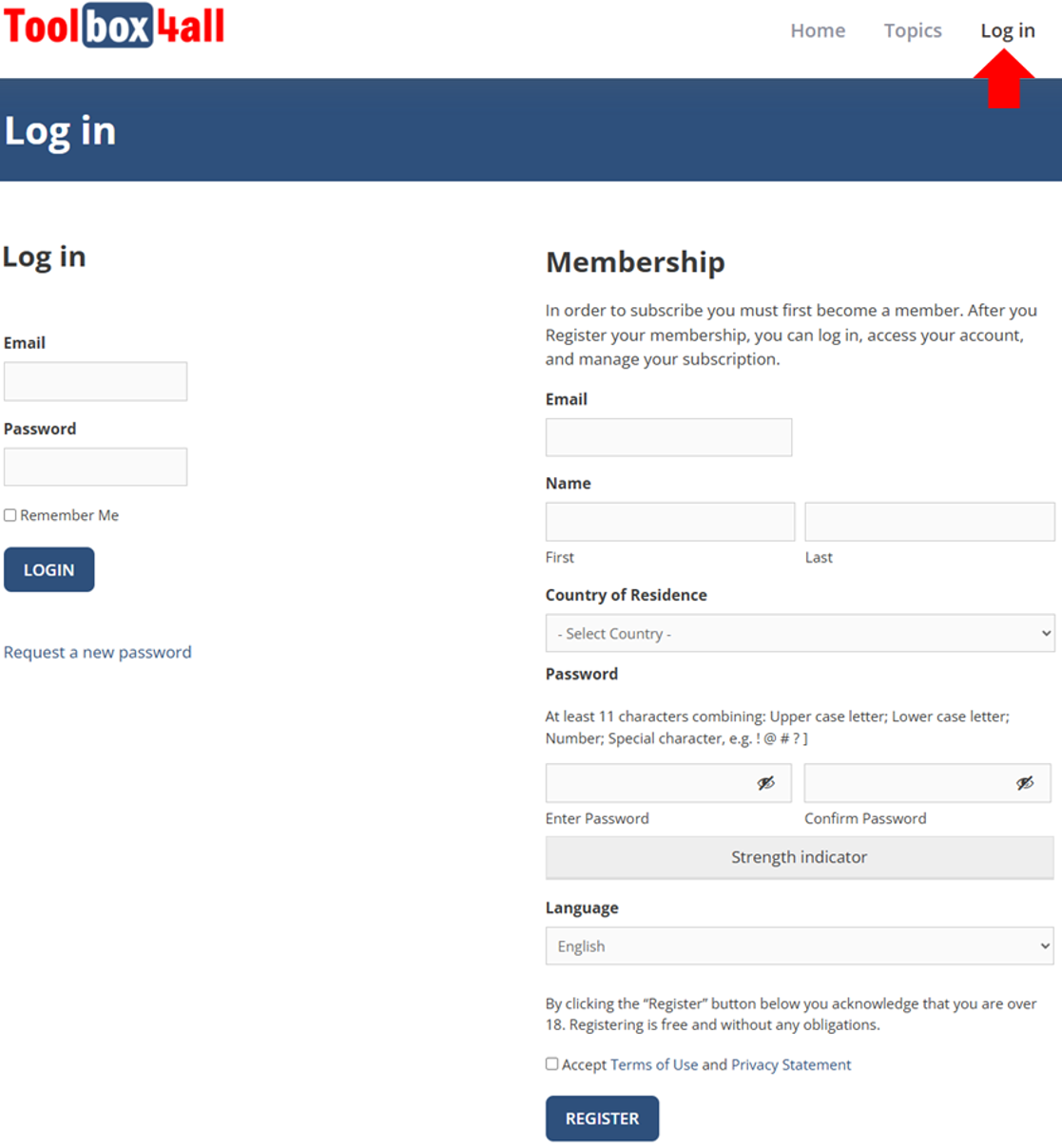
Select the Log in tab at the top of the screen, to open the Log in page.
Under Membership, enter a valid email address, your name, select your country of residence and enter a “strong” password.
If you receive a warning that the subscription service is not currently supported in your country, you may still register, but you will not be able to subscribe. If you register we will let you know when support is extended to your country.
Choose your language, as required, accept Terms of Use and Privacy Statement, and Select Register to complete registration.
2. Log in to your membership account
Once registered as a member, select the Log in tab at the top of the screen to open the Log in page.
Log in to your membership account by entering the email address and password used for registering. Whereas you can only register once, you need to log in on each individual device you wish to use.
If you have forgotten your password you can request a new one.
You can select Remember Me to avoid being logged out each time you close your browser. If you are using a public device, you should not use this option, and must log out after each use to avoid others getting access to your account.
Note if you switch browser on a device or switch to another device, you will have to log in again.
3. Subscribe to the subscription service
3.1 Account Page
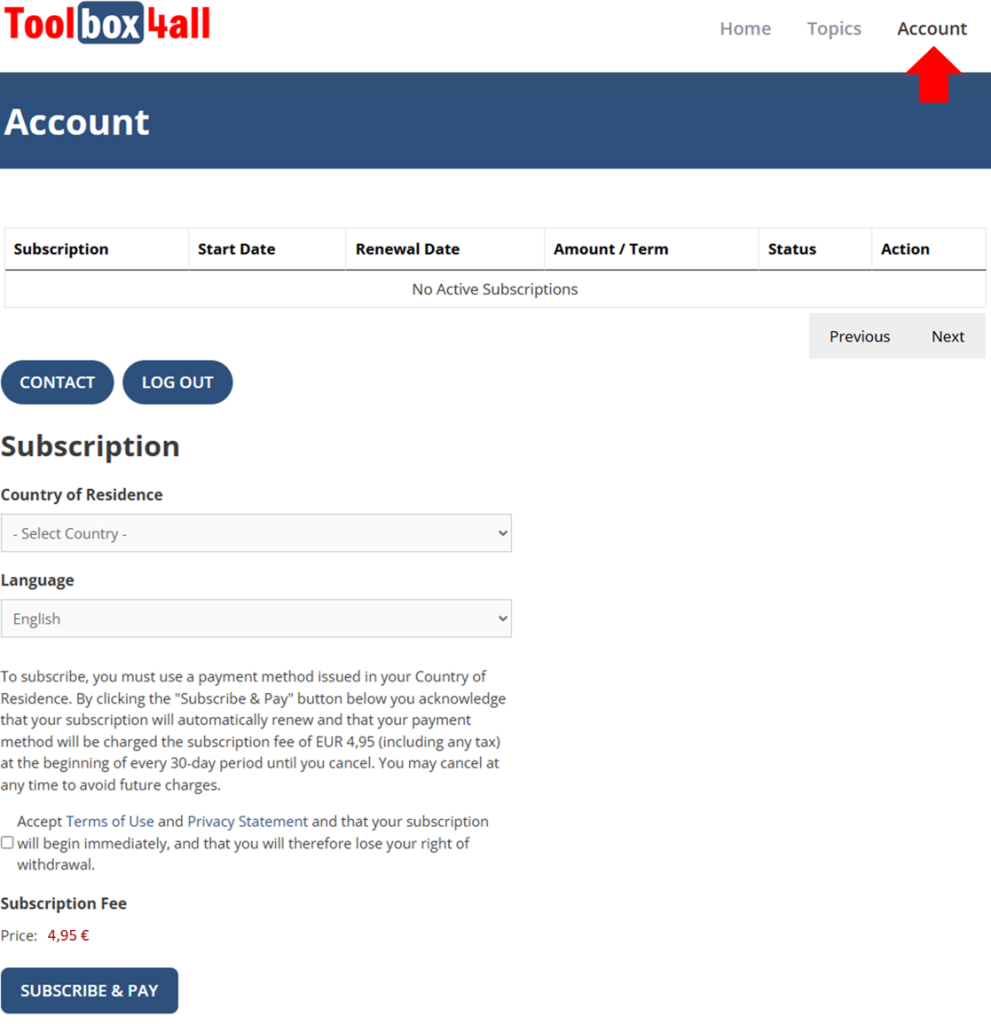
Once logged in, the Log in tab, at the top of the screen, will be replaced by the Account tab. Select the Account tab to open your account page. This is where you subscribe and manage your account.
Select your country of residence and choose your language as required. Accept the Terms of use, the Privacy Statement and that your subscription will begin immediately.
3.2 Stripe payment page
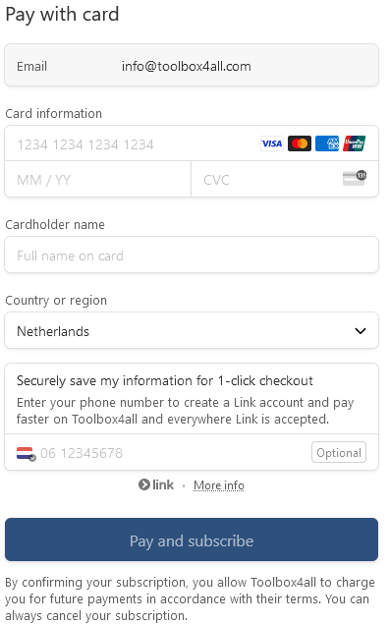
Select Subscribe & Pay to be taken to the Stripe payment page. Enter your payment method information and the name on your payment method. Under Country or region you must select your country of residence, irrespective of where you are currently located.
By selecting the 1-click checkout option, your payment method data will be saved by Stripe for future payments. This will enable you to resume your subscription, at some point in the future, without having to re-enter your data.
Select Pay and subscribe. Your subscription will be active once your payment has cleared.
Note your payment method must be issued in your country of residence or you will receive an error message and your payment will not go through.
Managing Your Subscription
Account Page
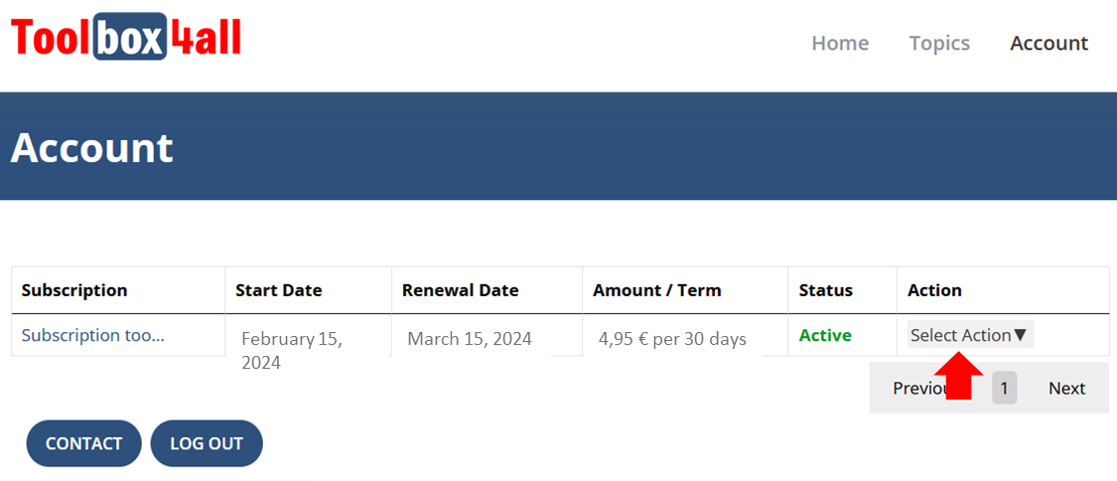
Whenever you are logged in, the Log in tab, at the top of the screen, will be replaced by the Account tab. Once you have an active subscription, an overview of this will be provided, including the start date, the next renewal date (i.e. start of next billing period), subscription fee and the subscription status.
The subscription status may be one of the following:
- Active – You have access to the videos and your subscription will automatically renew. The Select Action button will allow you to Cancel the subscription renewal.
- Cancelled (Active until date) – You have access to the videos until mentioned date, but your subscription will no longer renew.
- Cancelled – You no longer have access to the videos. An option will appear to allow you to resume your subscription, which may be done at any time.
To log out of your account select the Log out button. This will close your account page and the Account tab, at the top of the screen, will be replaced by the Log in tab.
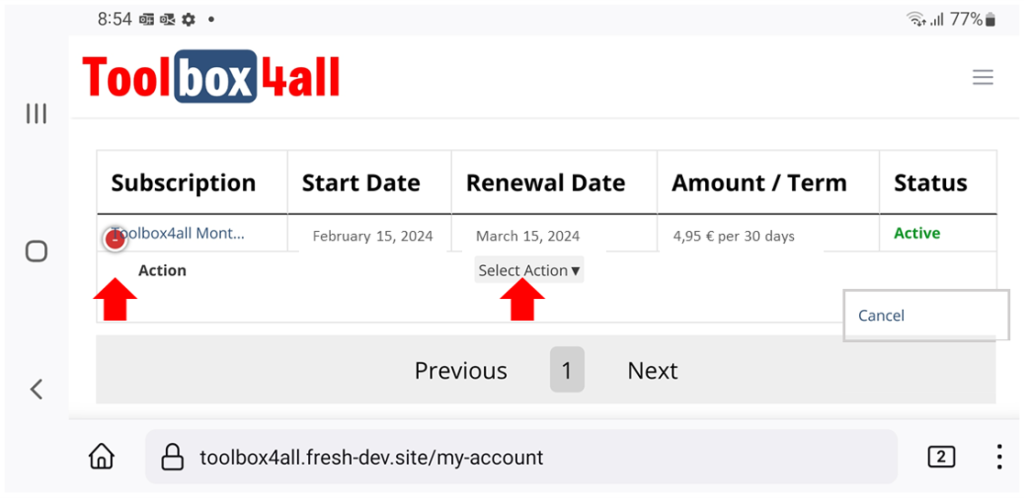
Note for some mobile devices it may be required to use landscape mode to view the Account page (see Help Center for how to do this). When the status is Active, a coloured dot will appear which allows the Select Action button to be toggled on and off.